Three steps
- Put the cursor where the text should go. Any window works: Word, Gmail in a browser, Slack, Notepad, VS Code.
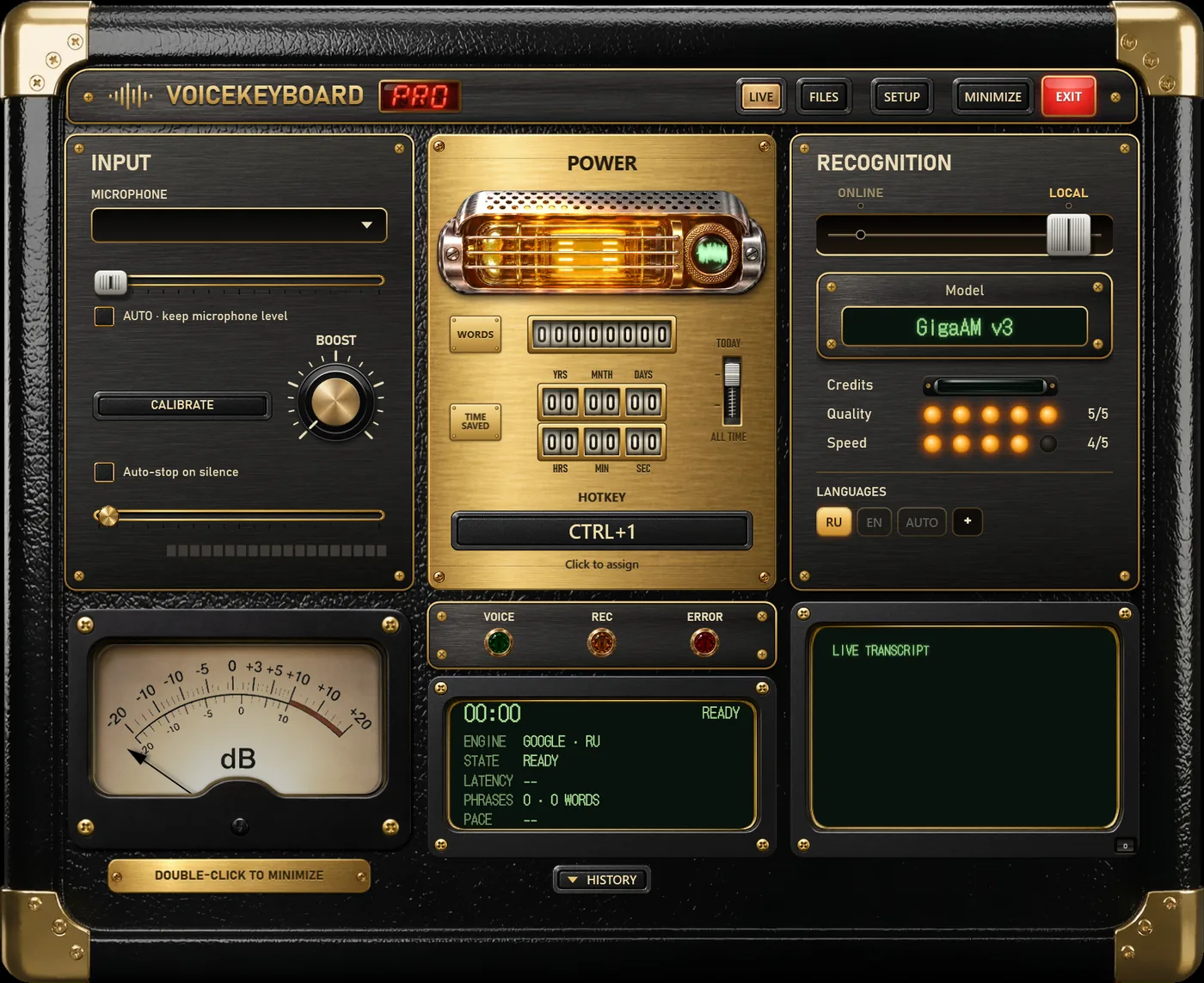
- Press Ctrl+1 and speak. The POWER tube warms up while VoiceKeyboard is listening.
- Press Ctrl+1 again to stop. With online engines the text is typed as you talk; with most offline models it appears after each phrase.
You can move the hotkey to another combination in the app if Ctrl+1 is taken.
Which engine to use for English
Every engine in VoiceKeyboard understands English, except the two models made only for Russian, so the choice comes down to what matters to you: speed, privacy or a mix of languages.
| Engine | Internet | Text appears | Plan | Pick it when |
|---|---|---|---|---|
| Soniox | yes | while you speak | Pro | you want the best accuracy, long meetings, or you switch between English and another language mid-sentence |
| Standard (Google) | yes | while you speak | Free | you want live text for free and you speak one language at a time |
| Parakeet v3 | no | after each phrase | Free | you want offline dictation with punctuation and a good speed on an ordinary PC |
| Whisper | no | after each phrase | Free | you dictate in several languages offline; bigger sizes are more accurate but slower |
| Vosk | no | while you speak | Free | the computer is old or slow; the English model is small |
Offline models download once, inside the app, and after that your audio never leaves the computer. Online engines send the audio to the provider only to transcribe it; VoiceKeyboard does not keep recordings.
Accents and other languages
If English is not your only language, two engines help. Soniox listens for the language itself and can switch inside a single sentence, so a German or Spanish phrase in the middle of an English email stays readable. Whisper on the AUTO key works out the language of each recording, so dictate the other-language part as its own recording. The Standard engine hears exactly one language, the one whose key is lit.
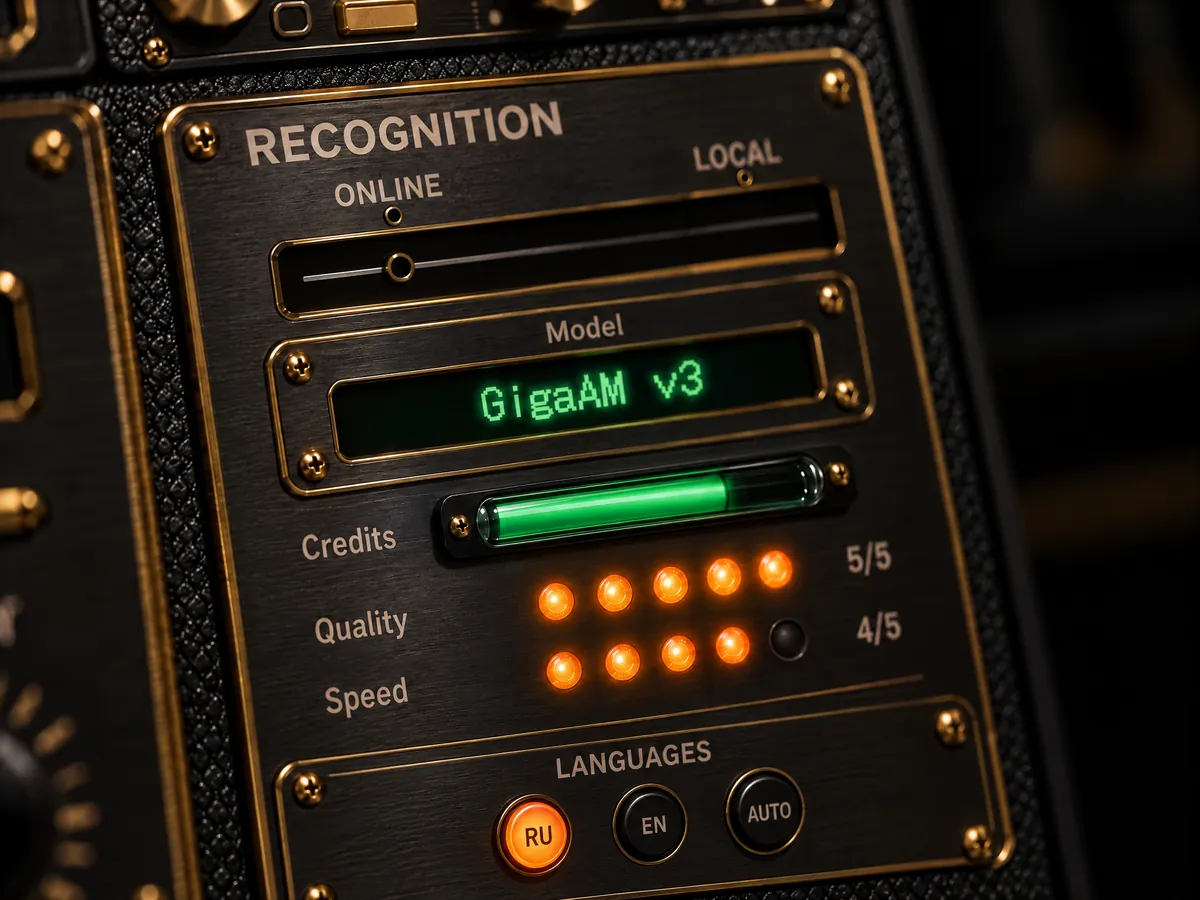
The language keys sit on the RECOGNITION panel. Press + to choose the languages you actually use, out of 33, and each gets its own key. VoiceKeyboard remembers the language separately for every engine, so switching engines does not reset it.
Free or Pro for English
Free
- 2,000 words a day with any engine, online or offline. That is several long emails or about four pages of notes.
- All offline models, including Parakeet, Whisper and Vosk.
- One audio or video file and one video link a day, up to 60 minutes each.
- The catch: no Soniox, and the daily limit stops dictation until midnight.
Pro
- No daily word limit on the Standard engine and offline models.
- Soniox: 1,500 minutes a month, live text, language detection, recordings as long as a meeting.
- Files and links without limits, several at once, with timestamps.
- The catch: Soniox minutes do not carry over to the next month. When they run out, dictation keeps going on the Standard engine.
Pro costs $14.99 a month, or $9.99 a month on a yearly plan, and comes with a 14-day refund. It is the same app; a license code switches Pro on.
Small things that save time
- Dictating prompts for ChatGPT or Claude is where voice pays off most: you say in twenty seconds what takes two minutes to type.
- The counters on the POWER panel show how many words you dictated and roughly how much typing time that saved.
- If someone is reading over your shoulder, switch the live transcript screen off. The text still goes to your window.